Viewing Studies and Series
DICOM studies and series can be examined and compared in the workspace, as shown below. Tools to manipulate images, add annotations, synchronize views, as well as advanced functionality such as segmentation, are available in the workspace panels. Views of imported datasets — 2D acquisition plane images, multi-planar reformations, and 3D renderings — are contained within scene views. To document your findings you can save snapshots of relevant images.
DICOM study
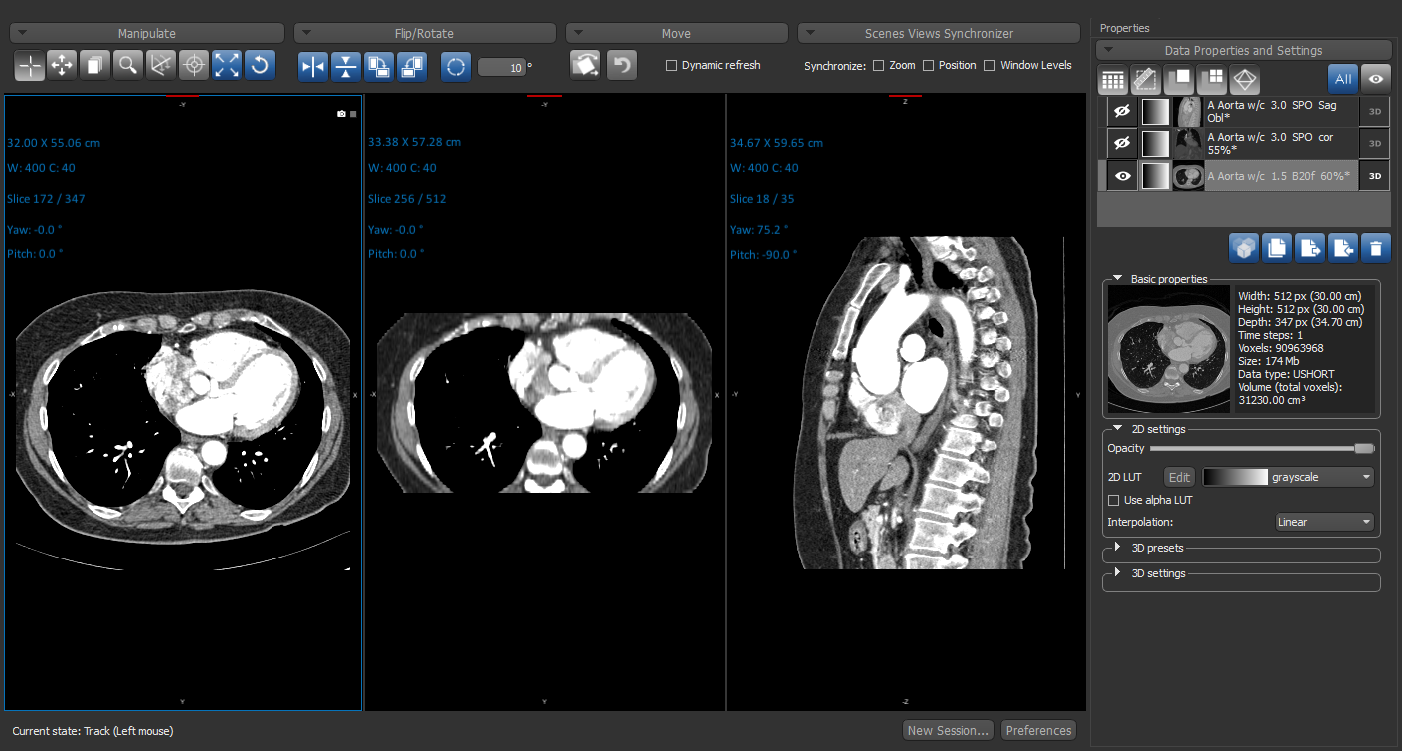
Studies, which can contain multiple series, are loaded and displayed according to the configured DICOM Preferences and Views Preferences. These preferences include the number of series that will be appear in the workspace when a study is opened, as well as the type or types of images — 2D, MPR, 3D renderings — that will be displayed for each series. You can change the views layout and the type of images displayed while you work (see Scenes and Views).
 How to View a DICOM Study
- Select the required study in the Manage DICOM Images dialog and then do one of the following:
- Right-click and choose View Study in the context menu.
- Click the View Study button on the right of the Study list.
- Double-click the selected study.
The series in the study are loaded and displayed according to the configured preferences.
How to View a DICOM Series
- Select the required series in the Mange DICOM Images dialog. To select multiple series, do one of the following:
- Ctrl-click each required series.
- Shift-click the first series and then click again on the last one in the range. You can also select a range by clicking the first series and then dragging to the last one in the range.
- Do one of the following:
- Right-click and then choose View Series in the context menu.
- Double-click the selected series.
The selected series opens and is displayed according to the configured preferences.


